Calendar Safety
Synora only ever edits its own blocks.
Own blocks
Read more →Coaches
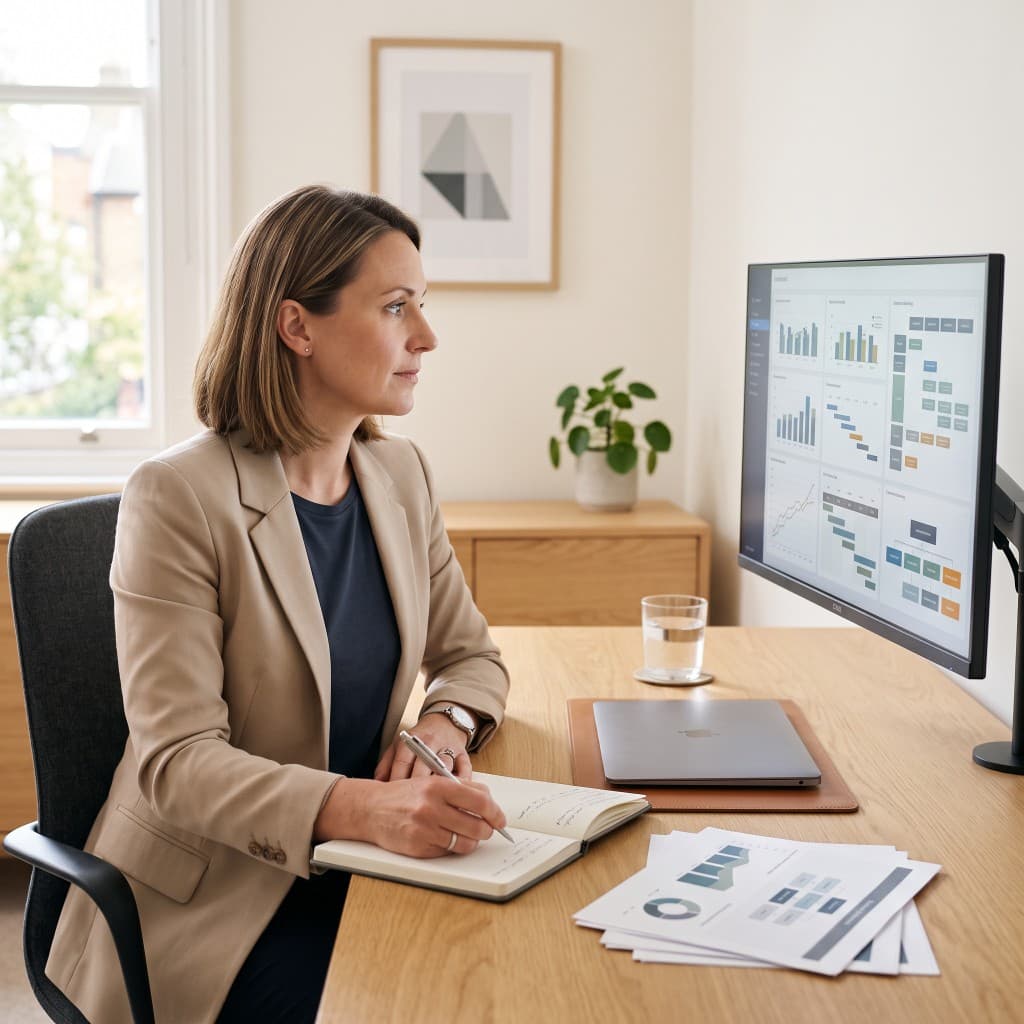
Synora turns due-dated Google Tasks into calendar blocks around the sessions you already booked — prep before the call, notes after it.
Automatic Planning
Give prep or notes a due date and Synora places them in the gaps between the sessions you already booked. The day around your clients is there when you open the calendar.
Prep and Follow Up
Synora reads your calendar and puts preparation before the session and notes after it, every time, without being asked.
Start for freeWhat Rolls Forward
What you did not finish moves to the next day with room for it, overnight. You never rebuild the list by hand, so the time you would spend planning goes into the work instead.
Your Working Hours
Set the hours Synora may use and it plans only in those, with a buffer between blocks. Your day has a shape again, and it ends when you said it would.
Start for freeTrust
Calendar Safety
Synora only ever edits its own blocks.
Own blocks
Read more →Security & Privacy
Data is stored in the EU, never sold, never used for ads.
EU
Read more →You leave
Revoke access anytime and delete your data yourself.
One click
Read more →How it works

Welcome to Synora
Agree & sign up with Google01 — Sign in with Google. There's no separate account to create. Signing up and connecting Google are the same step.
 Google Calendar
 Google Tasks
02 — Confirm what Google asks for. The consent screen asks for four things: the list of calendars, the events on them, when you're busy, and your tasks.
 My Tasks
03 — Give the first task a due date. After Google is connected, onboarding goes straight to the first due-dated task. Hours default to 08:00–22:00.
 Calendar
Draft proposal — Northwind
10:45 – 12:00
04 — Open Google Calendar. That's it — opening your calendar and looking at it. The due-dated task is already a block.
Google TasksGoogle Calendar05 — It stays in the background. No dashboard, no weekly review, no second system. You add tasks in Google Tasks and look at Google Calendar.
Get started
Connect Google, date the prep and the notes, and let the gaps in your day do something useful.